To help with real time communication outside of these forums (and any future real time chat app) we have spun up a TeamSpeak server! This is a TeamSpeak 6 Server, which means you can connect to it from either a TeamSpeak 3 or TeamSpeak 6 Client. If you’re already familiar with the client, then the server information is below.
Server Address: shadowless.net
For those who need a little extra help, here are some hopefully helpful instructions on how to download and join the TeamSpeak server to chat with community members.
TeamSpeak 6
-
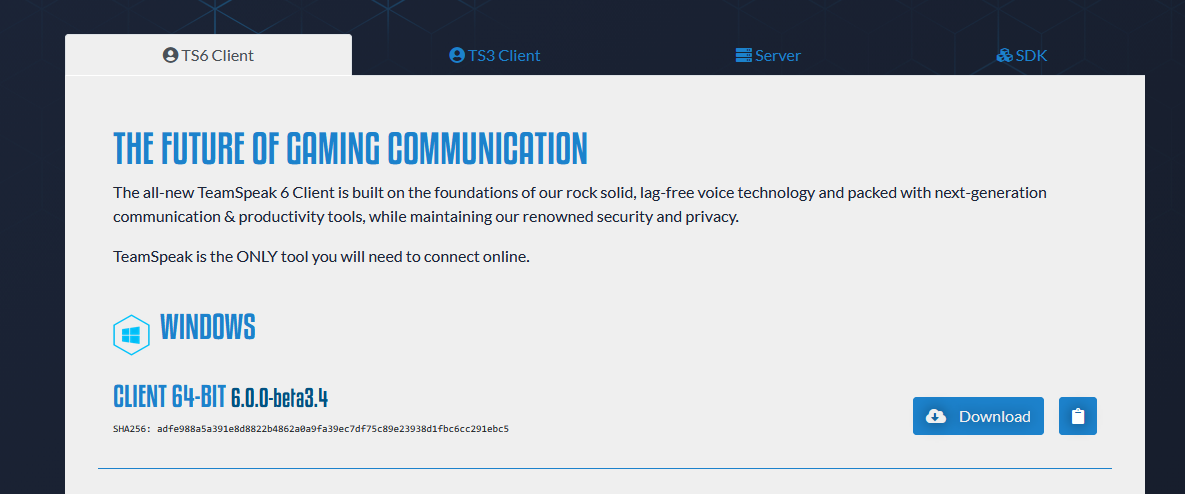
Download the TeamSpeak 6 Client for your operating system from TeamSpeak Downloads | TeamSpeak , this is likely to be the Windows 64-bit client.
-
Install the client, on first boot you will be asked to create a new MyTeamspeak Account, or sign into an exisiting one. Likely you do not already have a MyTeamspeak account, so follow the directions in the window to create one. You WILL need access to the email address you put in to verify your account. [1]
-
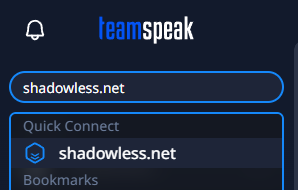
Once you have signed in, you will be presented with the “Home Screen”, in the top left hand corner is a text box that says “Search/Connect”.
-
Inside that box type our Server address, which is just “shadowless.net” without the quotes. Click on the “Quick Connect” option that comes up.
-
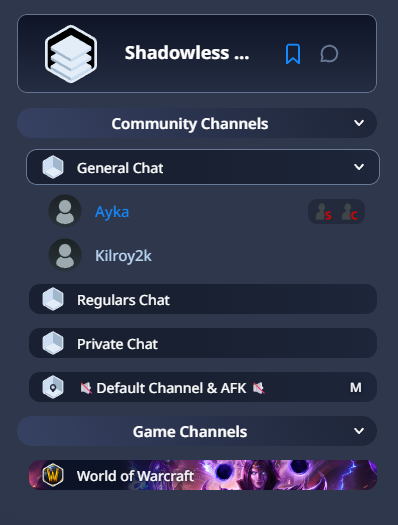
You are now connected! You can double click on any of the chat rooms in the channel bar to join that room (as long as you have permissions). By default you will join a channel that automatically mutes all users so you don’t have a hot-mic the moment you start.
-
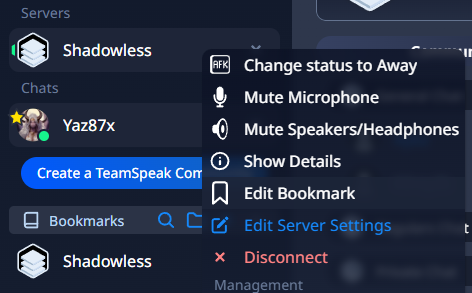
I would suggest at this point you add the server as a Bookmark within the Client, you can do this by right clicking on the Server in your server list, and selecting Bookmark. (Mine says Edit Bookmark as Ive already set this up)
-
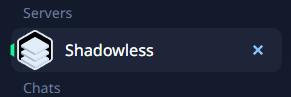
To leave the sever, simply click the X on the right side of the server in your Server List
-
Chat! Mute and Deafen buttons are at the top of the window.


At this time, TeamSpeak 6 does require a centralized account to use. If this is a dealbreaker for you, you can use a TeamSpeak 3 Client to connect and chat, but will be unable to interact with any screen-sharing or streaming video. ↩︎